Smart Field Mapping: How Visual Validation Prevents Data Import Disasters
See how CSVImport's new smart field mapping instantly detects mismatched data and validates your CSV against API specifications before you submit a single row.
You’ve been there: You spend an hour uploading 500 rows to an API, only to discover halfway through that you mapped the wrong fields. Now you have 250 corrupted records in production, and you’re scrambling to write a cleanup script.
The problem? Most CSV import tools don’t tell you when your data doesn’t match the API’s expectations. They blindly submit whatever you map, and you only find out about the mismatch when the API starts rejecting requests.
We just shipped a feature that solves this: Smart Field Mapping with Visual Validation. Before you submit a single row, CSVImport now shows you exactly which fields match the API spec, which are missing, and which might be mapped incorrectly.
Table of Contents
- The Problem: Silent Mapping Errors
- How Smart Field Mapping Works
- Visual Indicators: What They Mean
- Real Example: Catching a Mismatch Before Disaster
- When Auto-Mapping Works Perfectly
- Best Practices for Field Mapping
The Problem: Silent Mapping Errors
Traditional CSV import tools work like this:
- Upload your CSV
- Manually map each column to an API field
- Click “Submit”
- Hope for the best
If your CSV has a column called customer_name and you map it to the API field product_title, the tool doesn’t care. It’ll happily send “John Doe” as a product name, and the API will either:
- Accept it (corrupting your data)
- Reject it (wasting your time and API quota)
- Partially accept it (now you have inconsistent data)
The root cause: Import tools treat field mapping like a mindless copy-paste operation. They don’t validate that your data semantically matches what the API expects.
How Smart Field Mapping Works
CSVImport now analyzes three layers of information to validate your field mappings:
1. OpenAPI Schema Analysis
When you select an endpoint, CSVImport reads the OpenAPI specification to understand:
- What fields does this endpoint expect?
- Which fields are required vs. optional?
- What data types does each field accept?
2. CSV Column Semantic Matching
When you upload your CSV, the system compares your column names against the API schema:
- Exact match: CSV column
name→ API fieldname✓ - Fuzzy match: CSV column
product_name→ API fieldproductName(likely correct) - No match: CSV column
customer_email→ API fieldproduct_sku(warning!)
3. Visual Validation Indicators
Instead of making you guess, CSVImport shows you exactly what’s happening:
- Green checkmark - Exact or high-confidence match
- Yellow badge - Field mapped manually (verify it’s correct)
- Red warning - Required field missing or likely mismatch
Visual Indicators: What They Mean
Here’s what you’ll see in the mapping interface:
| Indicator | Meaning | Action Required |
|---|---|---|
| ✓ Exact Match | CSV column name matches API field exactly | None - this is correct |
| ✓ Fuzzy Match | Semantic match detected (e.g., product_name → productName) | Verify the mapping is what you intended |
| Manual | You manually mapped this field | Double-check you selected the right API field |
| ⚠ Warning | Required field has no mapping OR suspicious mismatch | Fix before submitting |
Real Example: Catching a Mismatch Before Disaster
Let’s say you’re importing product data, but you accidentally upload a customer CSV instead. Here’s what happens:
Step 1: Select Your Endpoint
You choose POST /products from your API specification.
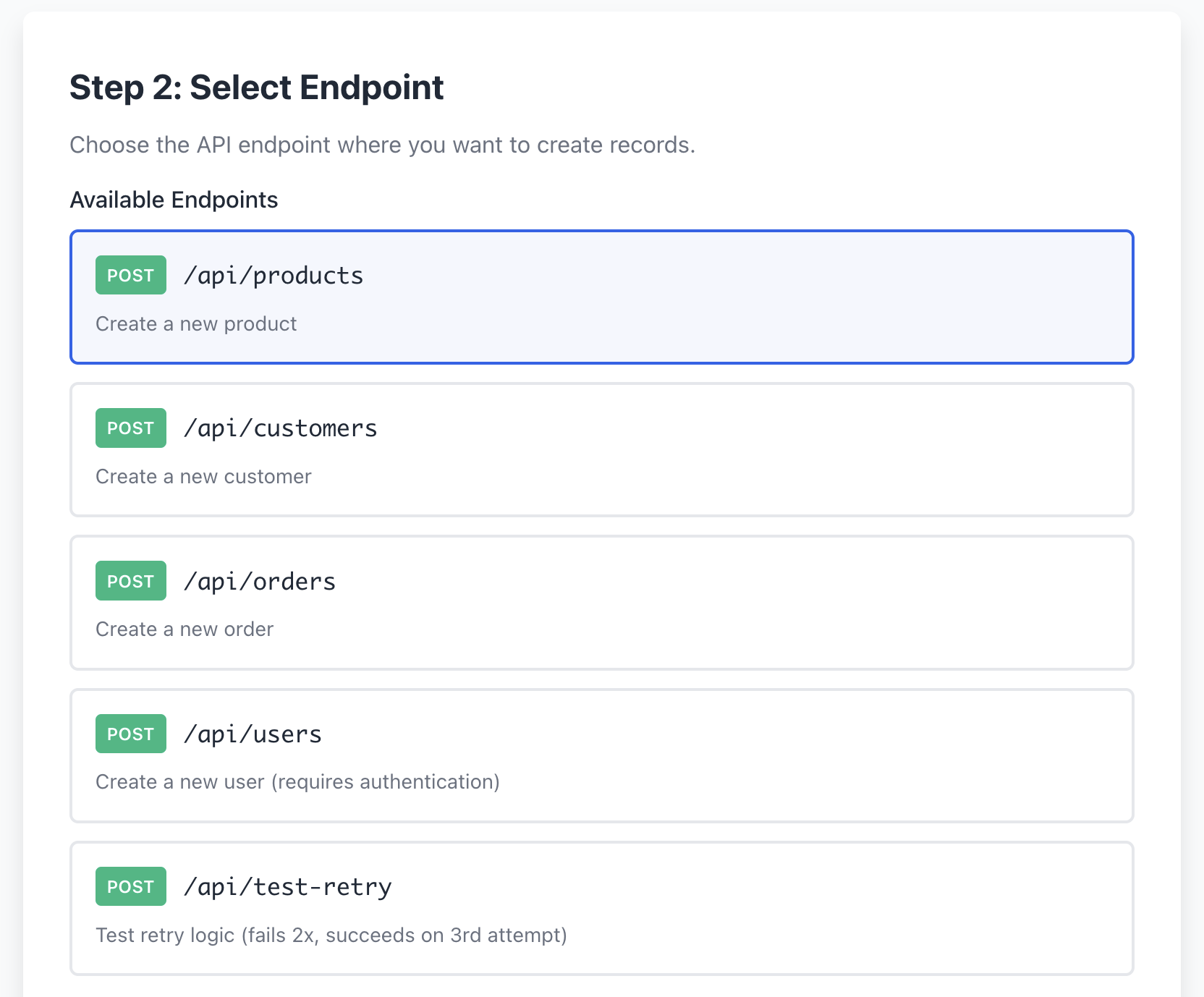
At this point, CSVImport knows the /products endpoint expects fields like:
name(required)price(required)sku(required)description(optional)
Step 2: Upload the Wrong CSV
You accidentally upload customers.csv instead of products.csv. The file has columns like:
customer_nameemailphoneaddress
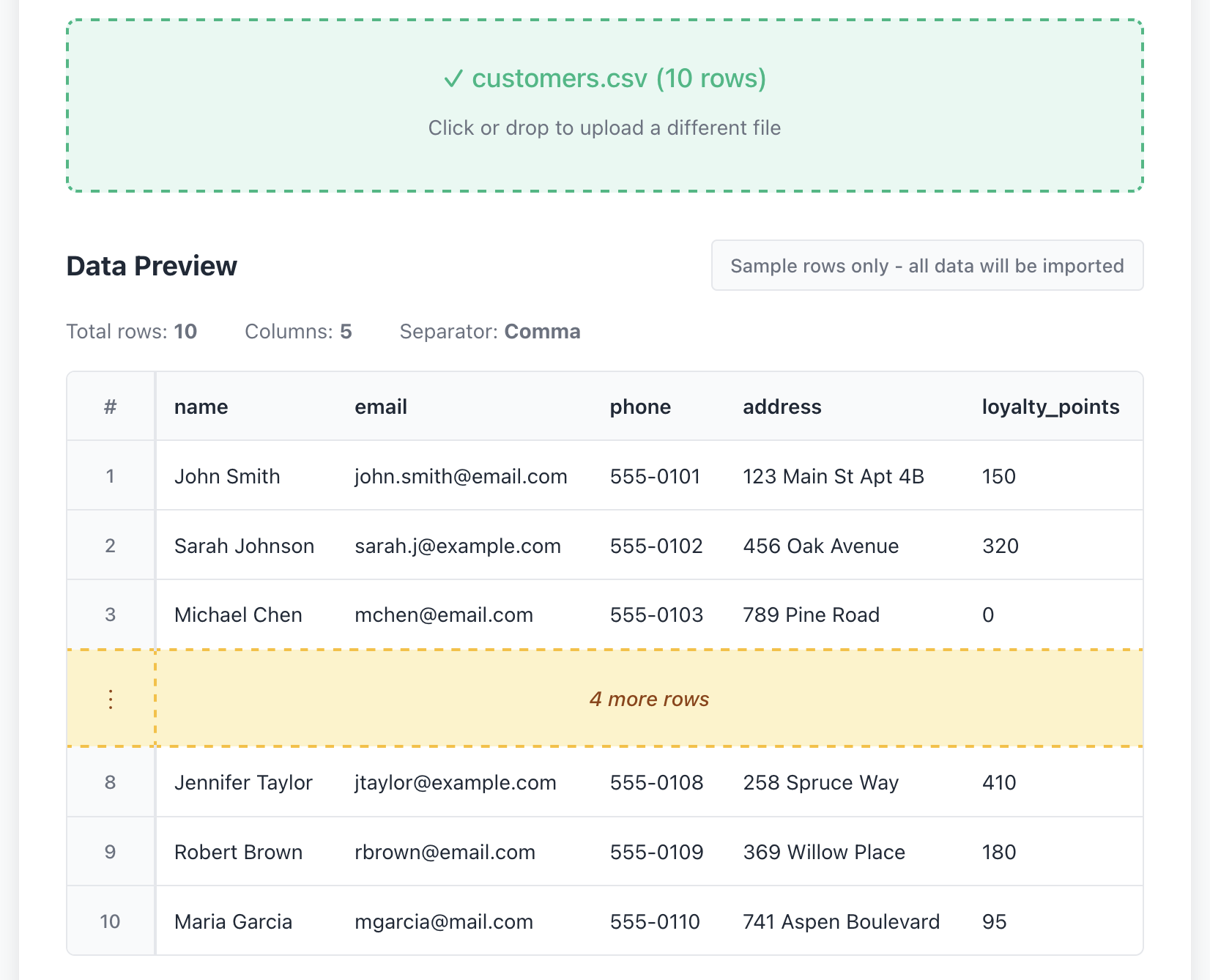
Old behavior: The tool would just let you proceed, and you’d waste time manually mapping customer_name to product_name, wondering why nothing makes sense.
Step 3: Smart Mapping Detects the Problem
When you reach the mapping step, CSVImport immediately shows warnings:
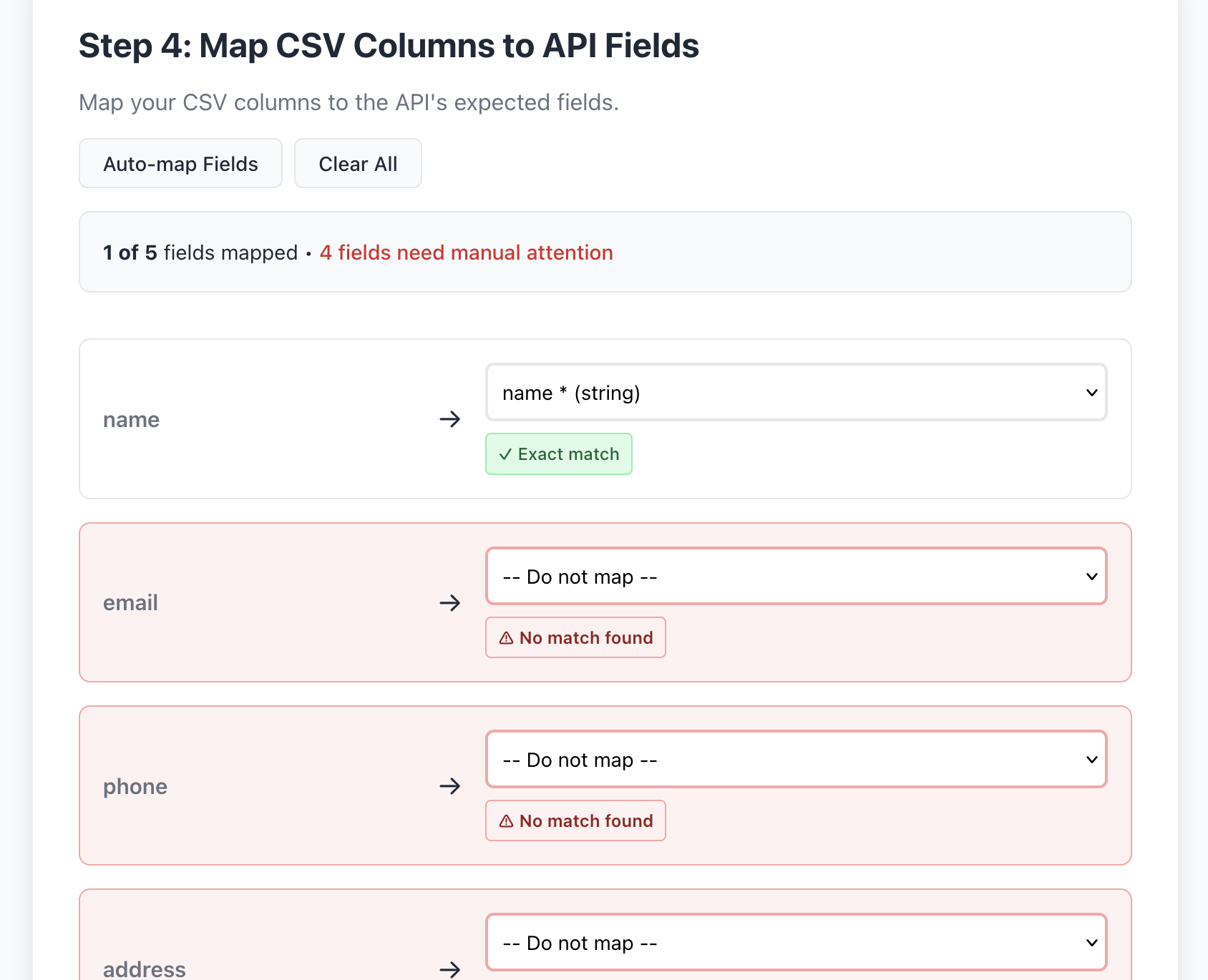
You see:
- ⚠ No automatic mapping found for required fields like
name,price,sku - Red highlighting on unmapped required fields
- Clear warning messages indicating your CSV doesn’t semantically match this endpoint
Result: You realize the mistake before submitting 500 rows of customer data as products.
When Auto-Mapping Works Perfectly
Now let’s see the happy path: You upload the correct CSV with matching column names.
Step 1: Upload the Correct CSV
You upload products.csv with columns:
namepriceskudescription
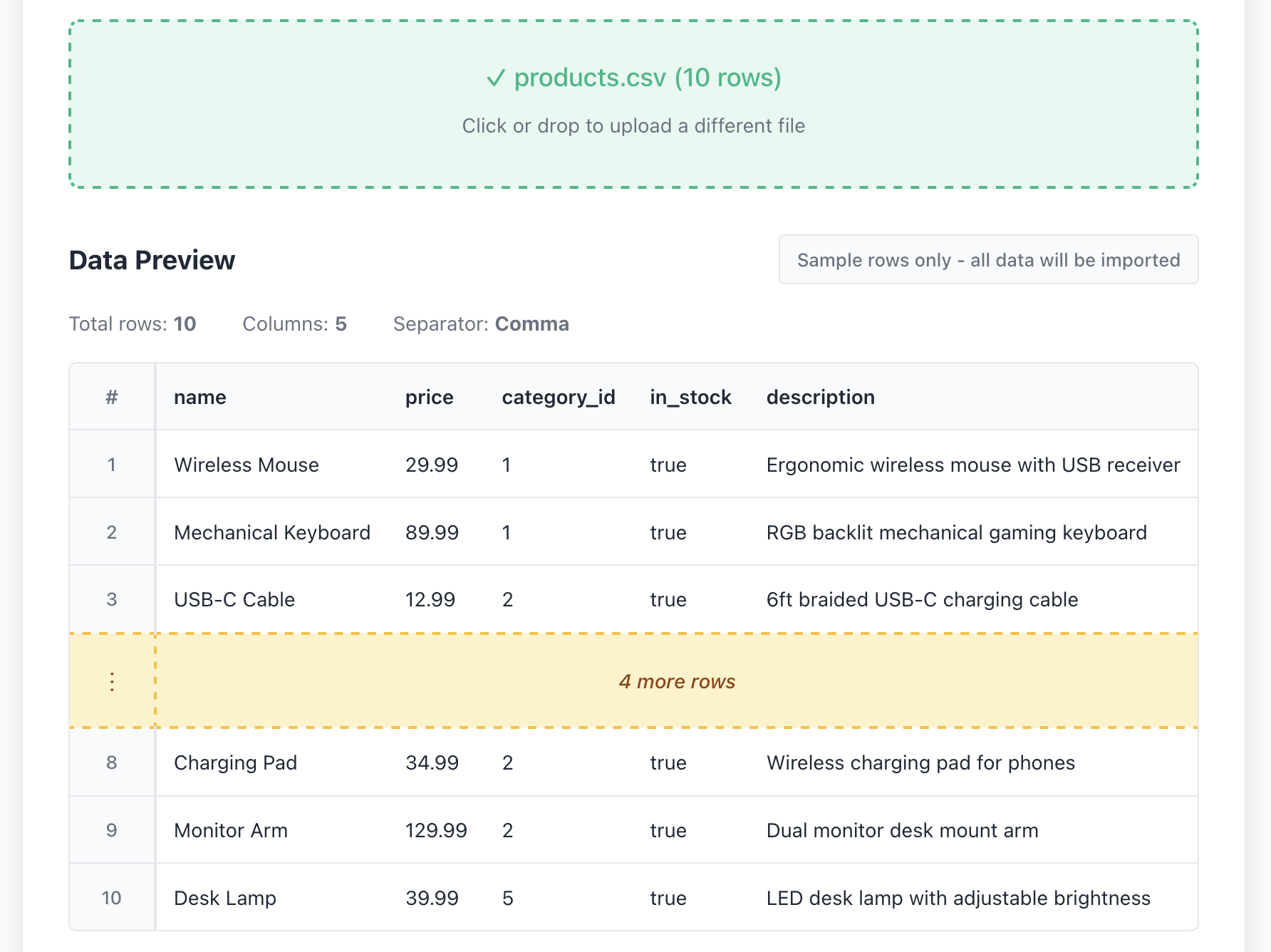
Step 2: Automatic Field Mapping with Confidence
CSVImport analyzes your CSV against the /products endpoint schema and automatically maps everything:
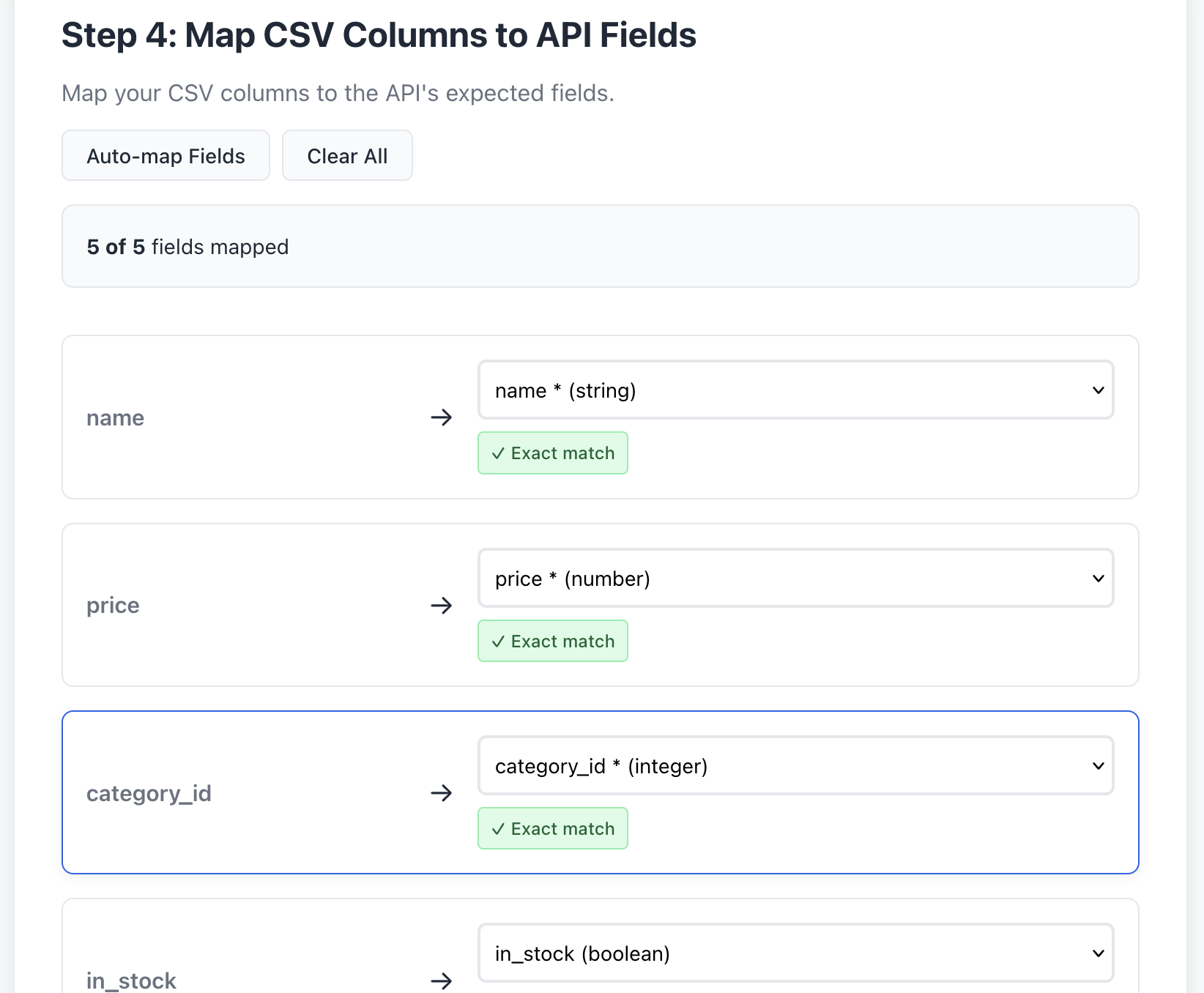
You see:
- ✓ Green checkmarks on all mapped fields
- “Exact Match” indicators showing high confidence
- All required fields mapped automatically
- No warnings - you’re good to submit
Result: You can confidently click “Submit” knowing your data matches the API’s expectations.
Best Practices for Field Mapping
Based on the smart mapping system, here’s how to ensure successful imports:
1. Pay Attention to Required Field Warnings
If you see red warnings about unmapped required fields, stop and investigate. The API will reject every row if required fields are missing.
Fix: Either add the missing columns to your CSV, or verify that you selected the correct endpoint.
2. Verify “Manual” Mappings
Yellow “Manual” badges mean you overrode the automatic suggestion. This is fine for legitimate cases (e.g., your CSV uses non-standard column names), but double-check you didn’t accidentally map the wrong fields.
3. Use Semantic Column Names in Your CSV
The auto-mapper works best when your CSV columns match API field naming conventions:
- Good:
product_name→ auto-maps toproductNameorproduct_name - Bad:
col_1→ requires manual mapping
If you control the CSV source, use descriptive column names that match your API documentation.
4. Test with a Small Sample First
Even with smart validation, always test with 5-10 rows before submitting thousands:
- Upload your full CSV
- Map fields and verify indicators
- Temporarily delete all but the first 10 rows in your CSV
- Submit the sample
- Check results in your API
- Upload the full file once confirmed
This is especially important when bulk importing CSV data into production APIs like Stripe, Shopify, or Salesforce.
5. Use Mapping Templates for Repeated Imports
If you’re importing the same data structure regularly (e.g., weekly product updates), save your mapping as a template. CSVImport will remember:
- Which endpoint you’re targeting
- How fields are mapped
- Your authentication settings
Next time, just load the template and upload your new CSV - no re-mapping needed.
The Bigger Picture: Prevention Over Cleanup
Smart field mapping is part of a larger philosophy: Catch errors before they reach production.
In software development, we’ve learned that fixing bugs in production is 10-100x more expensive than catching them during development. The same applies to data imports:
- During mapping (free): Visual indicators show mismatches instantly
- During submission (cheap): API validation errors are caught row-by-row
- After submission (expensive): You have to write cleanup scripts, restore from backups, or manually fix corrupted data
By validating your mappings before you click Submit, you avoid the expensive third scenario entirely.
What’s Next?
Smart field mapping is just the beginning. We’re working on:
- Data type validation - Warn if you’re mapping text to numeric fields
- Sample value preview - See actual data from your CSV next to each field to verify correctness
- Confidence scores - Quantify how certain the auto-mapper is about each suggestion
- Cross-field validation - Detect logical errors (e.g.,
end_datebeforestart_date)
Want to try smart field mapping yourself? Sign up for early access and see how visual validation prevents import disasters before they happen.
About CSVImport: We’re building the most reliable CSV-to-API import tool for technical staff who need automation without scripting. Point at any OpenAPI spec, map your fields, and bulk-import with confidence.
Ready to try CSVImport?
Import your CSV data into any API in minutes. No coding required.
More from the blog
Bulk Import Products to Stripe from CSV
Step-by-step tutorial showing how to import your product catalog into Stripe. No programming required.
Complete CSV to API Import Guide
Learn how to bulk import CSV data without writing scripts or code. Complete guide for non-developers.
Smart Field Mapping with Visual Validation
Prevent data import disasters with visual warnings for unmapped fields and semantic mismatches.
Why Data Migration Scripts Fail
Understanding the common pitfalls in data migration and how to avoid them with proper tooling.